

Want to give your marketing agency or team member access to your Google Business Profile (GBP)? You can do it without sharing your Google password. Here is the current step-by-step process for inviting a manager or owner.
Quick answer: Go to your Business Profile → More (⋮) → Business Profile settings → People and access → Add. Enter their Google Account email, choose Manager or Owner, and click Invite.
Before you start
Sign in with a Google Account that has Owner or Primary owner access to the Business Profile. Have the email address associated with the new user’s Google Account ready. For most marketing agencies, Manager access is the safer choice.
How to Give Access to Google Business Profile: Step by Step
Step 1: Find your Business Profile on Google
Open Google Search while signed in with your business owner’s account. Search for the exact business name or type my business. If you manage more than one profile, select the business you want to share.
Step 2: Open Business Profile settings
In the “Your business on Google” management panel, click the three-dot More menu (⋮), then select Business Profile settings.
Step 3: Choose People and access
Select People and access. You can see existing owners and managers as well as pending invitations here. If this option is missing, check whether you are signed in as an owner.
Step 4: Click Add
Click Add to invite a person to manage your Google Business Profile.

Step 5: Enter an email and choose Manager or Owner
Enter the email tied to the person’s Google Account. Under Access, select Manager or Owner. A Manager can perform most everyday optimization tasks but cannot add or remove other users.
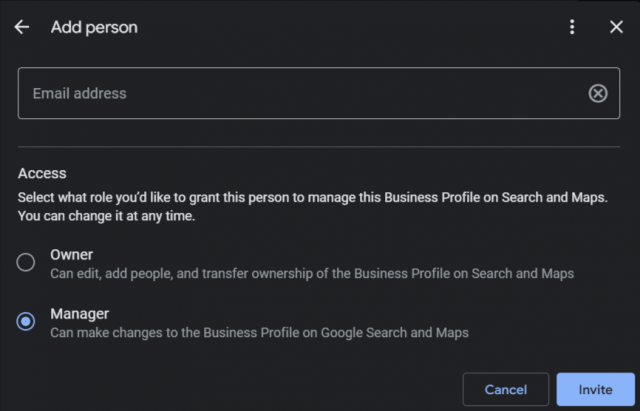
Step 6: Click Invite
Click Invite. The person receives an invitation and must accept it with their Google Account. Once accepted, they can work on the profile according to their role. Check invitation status from People and access.
Google Business Profile Owner vs. Manager
| Action | Owner | Manager |
|---|---|---|
| Edit hours, services and business information | Yes | Yes |
| Add photos and publish updates | Yes | Yes |
| Respond to reviews | Yes | Yes |
| Add or remove users | Yes | No |
| Remove the Business Profile | Yes | No |
Tip: Give an SEO consultant or agency Manager access unless they specifically need Owner permissions. Keep Primary owner control within your business.
How to remove someone’s access
- Open Business Profile settings → People and access.
- Select the person you want to remove.
- Click Remove person.
Only an owner can remove other owners or managers. Review access regularly and remove former employees or agencies who no longer work with you.
What if People and access is missing?
First check that you signed in with the right Google Account. You need Owner access to invite users. If an invitation isn’t working, confirm the email address and check whether it’s still pending. Newly added owners and managers must wait seven days before they can perform certain sensitive actions such as transferring primary ownership.
Frequently Asked Questions
Can I give access without sharing my password?
Yes. Add the person as an owner or manager. They sign in with their own Google Account.
Can a Manager add another user?
No. Only owners can add or remove people.
Should I give an SEO agency Owner access?
Manager access is usually sufficient for editing business information, posting updates and photos, replying to reviews, and performing routine local SEO work.
How do I cancel an invitation?
Open People and access, locate the pending invitation, and select Cancel invitation.
Need help with your Google Business Profile?
At iNeedMarketer, we help businesses improve their local search visibility through SEO, website optimization and Google Business Profile management. Get in touch with our team if you need help.
Instructions verified against Google’s official Business Profile Help on October 24, 2026. Screenshots are examples from third-party guides, credited to their original publishers. Google’s interface may change.